Edit a PDF on a Mac
To edit a PDF’s words on a Mac or MacBook, open it in CECO PDF in Safari, click the word and type the right one. Preview cannot edit a PDF’s own text, as Apple’s guide says. CECO PDF sets the new word in the document’s font, checks the page, and refuses what it cannot match.
Open a PDF to correct — it opens in Safari, with nothing to install.
- What it does: changes words that are already on the page, such as a typo, a date you typed wrong or a misspelt name in your own document, in a PDF with real text or in a scan.
- The check: the page is drawn before and after, a scan at 300 dots per inch and a page of real text at 150, and the result is offered only if nothing outside the corrected words changed.
- The price: correcting is free to try, 10 corrections a day on the free plan, and the corrected pages carry a watermark until you pay, unless you are signed in and have not yet taken your first corrected download of the day. Signed in, your first corrected download each day costs nothing; after it, one takes a credit or a plan. One document costs €0.99, with no account needed.
Your PDF is kept with your documents so you can come back to it, and deleted after 90 days or whenever you delete it. The privacy notice says what is kept, and why.
How do I edit a PDF on a Mac or MacBook?
- Open CECO PDF in Safari and press “Choose a PDF”, or drag the PDF from the Finder onto the page. A PDF with a password opens once you type its password.
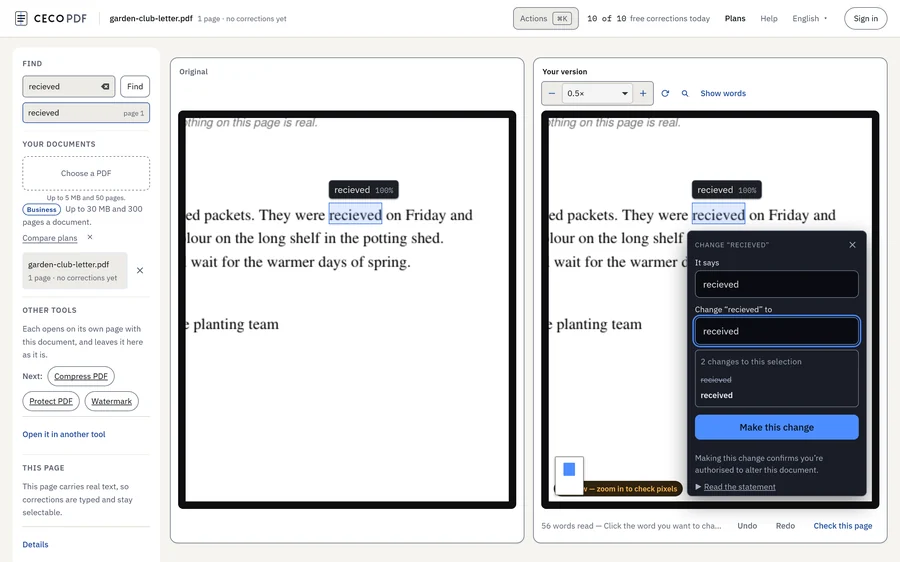
- Click the word you want to change, with the trackpad or a mouse. The hint under the page says how: “Click the word you want to change, double-click for a whole line, or drag a box.”
- Type the right word. The card fills in what the page says now; change it to what it should say and press “Make this change”, or ⌘↵ from the field. Leave the field empty and the button says “Delete this”: the words are deleted, not covered. On a page of real text, add the space after a word to “It says”, or the spaces either side of it stay side by side; Remove text from PDF says more.
- Read the check. Before you see the result, the page is compared with the original, a scan at 300 dpi and a page of real text at 150. The result says how the new word reached the page and counts the pixels changed outside it: outside 0 px, or the correction cannot be downloaded, and you are offered Undo.
- Look closely, if you want to. “Look closely” shows the corrected region magnified, before and after, and holding B puts the original back in its place.
- Download the corrected PDF, with ⌘S or the Download button. Safari saves it where it saves your other downloads.
Can Preview edit the text in a PDF?
No. Apple’s guide to Preview says so at the top of its page Annotate a PDF in Preview on Mac: “Although you can’t edit the text of a PDF in Preview, you can use the markup tools to provide feedback or write down something you want to remember.” What Preview offers instead is markup laid over the page:
- A text box. Of the Text tool, the guide says: “Type your text, then drag the text box where you want.” You can change its font and colour, but it is a new box on top of the page, and the word underneath stays where it was.
- Form fields. Preview types into a form’s own fields, and for the rest Apple’s page Fill out and sign PDF forms in Preview on Mac suggests a box: “If a PDF won’t allow you to type directly into the form, you can add a text box instead.”
- Signatures, notes, shapes and highlights, all as markup.
- The words of a scan. Apple’s page Embed text in a PDF says: “Preview can recognise text in an image-based PDF (like a scan or a picture of a document) and embed the text in the document.” Once embedded, the words can be selected in any PDF viewer. They still cannot be changed.
- Redaction. Its Redaction Selection tool takes text out of view, and the redaction becomes permanent once the document is closed.
How do I make a PDF editable on a Mac?
That depends on what the PDF holds. One saved from a word processor already holds its words as text, so nothing needs converting: open it in CECO PDF, click a word and change it. A scan holds only a picture of each page. Preview’s Embed Text, above, makes its words selectable; CECO PDF changes them in the picture itself, as Edit a scanned PDF explains.
Two other things are often meant. To go on writing the document, turn it into Word with PDF to Word. To make a form that can be typed into, Make PDF fillable adds real form fields over the blanks it finds.
Preview or CECO PDF: which does what?
They do different jobs:
| What you want to do | Preview | CECO PDF in Safari |
|---|---|---|
| Change a word that is already on the page | No: add a text box over it | Yes: the word itself, in the document’s font |
| Change a word in a scanned page | No: recognised text can be selected, not changed | Yes: the scan’s own letters moved, or letters drawn to match |
| Add new text where there was none | Yes, as a text box | Yes, as a text box, with Add text to PDF |
| Add a note, a shape or a highlight | Yes, as markup | Yes, as annotations, with Edit PDF |
| Fill in a form | Yes | Yes, with Fill PDF |
| Sign | Yes, from the trackpad, the camera, an iPhone or an iPad | Yes, with your own mark: Sign PDF |
| Black out text for good | Yes, with Redaction Selection | Yes, with Redact PDF, which reads the file back to show it is gone; removing words takes them off the page, but the record in the file still names them |
| Check that nothing else on the page changed | Not described | Yes: compared before and after, and no download until it passes |
Which keys work in Safari on a Mac?
The workspace answers the keys a Mac uses, with ⌘ where Windows would use Ctrl, and the command menu writes each one beside what it does:
| Key | What it does |
|---|---|
| ⌘K | Opens the command menu: type what you want done, or the name of another tool. |
| ⌘F | Finds words in the document itself, rather than in the page around it. |
| ⌘↵ | Applies the correction, even from the field you are typing in. |
| ⌘Z | Takes back the last correction. |
| ⌘Y | Puts it back again; ⇧⌘Z does the same. |
| ⌘S | Downloads the corrected PDF, once its check has passed. |
| B | Held down on the page, puts the original back in its place. |
| ? | Lists every key. |
| Esc | Closes what is open, or lets go of the selection. |
Undo and redo each count as half a correction against the free plan’s day.
Will the new word match the rest of the page?
In a PDF with real text, the new word is typed into the text in the document’s own font. In a scan, it is made from letters already on the page where it can be, or drawn to match the type beside it, with the blur, grain and ink colour of the page around it. When the typeface cannot be identified with confidence, or the new word will not fit its line, the change is refused and the page stays as it was. Edit PDF text says more about fonts, and How it works shows every step of the check.
What are the limits on a Mac?
The same as anywhere else, because the server sets them, not the browser. On the free plan, a PDF can be up to 15 MB and 50 pages, with 10 corrections a day; paid plans raise both, as the pricing page says. A file over the limit is refused with the limit named.
When is Preview the right tool?
Often. To fill in a form, add a note, highlight a line, sign, or make a scan’s text selectable, Preview does it on the Mac itself, without sending the file anywhere, and Apple’s guide shows how. It can also redact. Use CECO PDF when a word that is already in the document is wrong and the rest of the page has to stay exactly as it was: a typo in a letter you wrote, a date you typed wrong in your own report, or a misspelt name in your own form.
Correct only documents that are yours, or that you are entitled to alter: the terms say who may, and every correction carries your confirmation that you are authorised to make it. Identity documents are refused when they are uploaded.
Questions people ask
Can I edit a PDF on a Mac?
Yes, but what “edit” means matters. Preview adds text boxes, notes, highlights and signatures on top of the page. To change the words already there, open the PDF in CECO PDF in Safari, click the word and type the right one.
How do I modify a PDF on a MacBook?
The same way as on any Mac, with the trackpad: click the word, or drag a box over several, type the replacement and apply it. Nothing changes until you do.
Is editing a PDF on a Mac free?
Correcting is free to try, 10 corrections a day on the free plan, and you see the result before you pay. Signed in, your first corrected download each day costs nothing; after it, one takes a credit or a plan. One document costs €0.99, once, with no subscription needed. The pricing page lists the plans.
Do I need to install anything?
No. CECO PDF is a web page, so it runs in Safari, or in Chrome or Firefox on the same Mac, and the keys use ⌘ in each.
Can I edit a scanned PDF on a Mac?
Yes. Preview’s Embed Text makes a scan’s words selectable, not editable. In CECO PDF, the word is changed in the picture itself, from the scan’s own letters or letters drawn to match. Edit a scanned PDF says how.
Can I edit a PDF that is signed or has a password?
Editing a signed PDF breaks the signature; correct it, then sign it again. Open your own protected file with its password: the workspace asks for it, and Unlock PDF removes a password you know.
How do I white out a PDF on a Mac?
Preview can lay a white shape over a word, and the word stays in the file beneath it. To take a word off the page instead, select it in CECO PDF, empty the field and press “Delete this”. To take private details out of the file itself, use Redact PDF.
Can anyone tell the word was changed?
Nothing outside the corrected word changes: that is what the check proves. On a page of real text, the new word is the page’s own font and text. On a scan, drawn letters are new ink, a removal can leave a faint trace inside the corrected place, and someone comparing the patch closely with the rest of the page could tell; Measured results shows how readily forensic detectors find them. And nothing is hidden: every correction is recorded inside the file, with the words before and after.
Related pages
- Edit PDF text, for how a word is matched to the page’s own font
- Edit a scanned PDF, for a scan, a photo of a page or a PDF that will not let you edit
- Edit PDF on iPhone, for the same job on an iPhone or an iPad
- Edit PDF on Windows, for the same job on a Windows PC
- PDF to Word, when you want to rewrite the document in Word instead
- Edit PDF, to add text boxes, highlights and notes in Safari
- Fill PDF, to fill in a form
- OCR PDF, to make a scan searchable
Sources
Each page below was read on 29 October 2026, on its maker's own support site, in Apple’s Preview User Guide for macOS 27. What another program can do is said only as its maker says it.
- Apple: Annotate a PDF in Preview on Mac
- Apple: Fill out and sign PDF forms in Preview on Mac
- Apple: Embed text in a PDF
Last updated