Remove text from a PDF
To remove or erase words from a PDF, select them, clear the replacement and press “Delete this”. CECO PDF takes them off the page and moves the rest of the line across, rather than covering them with a white box, then checks the page. It refuses a removal that would leave a hole mid-line, and redaction is a separate tool.
Open a PDF to remove text — it opens the tool, with nothing to install.
- What it does: takes words out of the page, from a digital PDF's own text or from a scan's picture, and moves the rest of the line across.
- The check: the page is compared before and after, and the corrected file cannot be downloaded until nothing outside the removed words has changed.
- The price: a removal is a correction. Correcting is free to try, 10 corrections a day. Until it is paid for, the corrected pages show with a watermark, unless you are signed in and have not yet taken your first corrected download of the day; the file you download does not carry it. Signed in, your first corrected download each day costs nothing; after it, one takes a credit or a plan. One document costs €0.99, and a pack of 10 costs €4.99. One document can be bought without an account.
Your PDF is kept with your documents and deleted after 90 days, or whenever you delete it; the privacy notice says what is kept, and why. Correct only documents that are yours, or that you are entitled to alter: the terms say who may. Identity documents are refused when they are uploaded.
How do I erase or delete text in a PDF?
- Open the PDF. Press the button above and choose your file.
- Select the words: click a word, or drag a box around the words or a whole line.
- Clear the field that would hold the new words. Empty, it means remove rather than replace, and the button changes from “Make this change” to “Delete this”. To take a whole word out of a page of real text, add the space after it to “It says”, which holds what the selection reads, or the spaces on both sides of it stay.
- Press “Delete this”, and read the result: the words before, nothing after, and the count of pixels changed outside them.
- Look at the line, then download, or undo the removal.
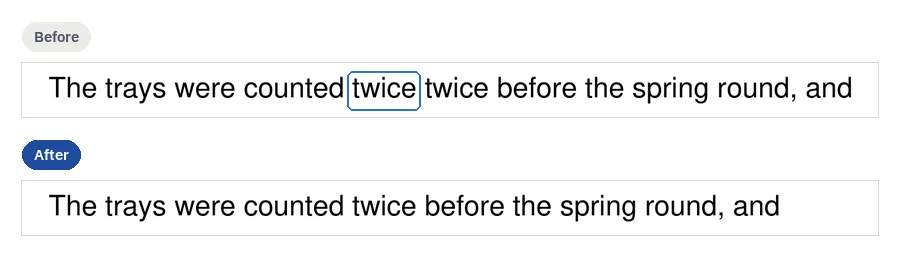
What happens to the line?
On a page of real text, exactly the characters you name are taken out of the text itself, and the line closes up by the width of the removed text, as the result says. The page no longer shows them, and a search or a copy of the page no longer finds them. Take a word's space out with it, as the steps say, or two spaces are left.
On a scan, nothing new is drawn. The letters are rubbed out and the rest of the line is moved across with the page's own pixels, the gap set from the line's own spacing, and the result says “Made from the page’s own marks”. At the end of a line, or for whole lines, the line simply ends sooner. When the rest of a line cannot be moved, removing words from its middle is refused, because it would leave a hole in the line. Look at the place closely before you download: the check holds everything outside it, not what is left inside it, and a faint trace of a removed letter, or of the edge of a moved one, can remain there.
Why does a white box not remove anything?
Because it is a cover. White-out, the usual way to make words disappear from a PDF, puts a white rectangle over them, and the words stay in the file underneath. Smallpdf's own guide rates white-out's security “Low”1, and warns: “A white rectangle can hide what you see, but the original content may still exist in the PDF and could be recoverable in some situations.” It also says: “It’s an overlay, not a deletion.” Sejda says its whiteout “hides but will not completely remove underlying text or images”2. On a scan a white box seldom matches, too: Smallpdf's guide notes that on a page that is not white, “pure white may stand out slightly”.
CECO PDF does not cover the words. On a digital PDF they are no longer in the page's text, so there is nothing under a box to lift. On a scan the line is closed with its own marks; what the file still holds is set out below.
Is the removed text gone from the file?
From the page, yes. From the file, not entirely, and it is better to know that before you rely on it:
- The record names it. The record inside the file lists every correction with
the words before and after, so it names the words you removed. It travels in the PDF as an
attachment named
provenance.json. - A scan can keep its original picture. The corrected strip is written into the scan's own picture where the scan's compression allows it. Where it does not, the strip is laid over the picture as a new image, and the original picture, with the words on it, stays in the file underneath.
- Your upload is kept as it arrived, with your documents, until it is deleted after 90 days or whenever you delete it.
So removing words here is for a document that should read as if they had never been there: a sentence cut from your own letter, a line left over from an earlier draft. It is not a way to share a document with private details taken out of the file: that is what redacting a PDF is for.
Which way should I use?
Each is right for some job. The makers' words are from their own pages, read on 29 October 2026:
| Way | What happens to the words | Fine for |
|---|---|---|
| A white box (white-out)1, 2 | Covered, and still in the file under the box. Smallpdf rates white-out's security “Low”; Sejda says its whiteout “hides but will not completely remove underlying text or images”. | A draft whose covered words do not matter |
| Removing them here (CECO PDF) | Taken off the page and the rest of the line moved across, then checked. The record inside the file names them, and on a scan the original picture can stay in the file underneath. | A document that should read as if they had never been there |
| Redaction (Redact PDF here, or Smallpdf's)1 | Removed from the file, with a mark where they were. Smallpdf says its tool is “built for permanent removal”. | Sharing a document with private details taken out |
What the others do better: a white box is quick, and for a draft whose covered words do not matter it is all that is needed; redaction takes private details out of the file itself, which a removal here does not.
What does it refuse?
- A watermark or a Bates number. Adding one is allowed here; removing one never is.
- A hole in a scanned line. Words in the middle of a line whose rest cannot be moved across, as above.
Removing works where writing does not: words set in two typefaces can be removed together, though a replacement must be set in one.
Questions people ask
How do I white out a PDF?
Most PDF editors draw a white rectangle over the words, which hides them and leaves them in the file. To take them off the page, remove them instead: select them, clear the field and press “Delete this”. To take them out of the file, redact them.
Can I white out a PDF for free?
Smallpdf says yes: “White-out edits are typically done by adding shapes in an editor, and you can do that online without installing software.”1 Removing words here is a correction: you can try 10 a day and see the result before you pay. Signed in, your first corrected download each day costs nothing; after it, one takes a credit or a plan. The pricing page lists the prices.
Can I delete text from a scanned PDF?
Yes. Nothing new is drawn: the rest of the line is moved across with the page's own marks, as above. Editing a scanned PDF says more.
Why can't I delete the text in my PDF?
A PDF that needs a password asks for it at upload: open your own protected file with its password. Words in a form's fields are its answers: change them with Fill & sign. Letters turned into shapes are not text, and the app says “This page is line artwork and carries no text to correct.” On a scan, words mid-line whose rest cannot be moved across are refused.
Can I remove a watermark from a PDF?
No. A watermark or a Bates number is never taken away, whatever the selection, even on your own file.
Can I undo a removal?
Yes. Undo takes the correction back, and counts as half a correction against the day's allowance.
Will anyone see that words were removed?
Anyone who reads the record inside the file will: it names each removal, with the words before and after. On the page itself nothing outside them changes, though on a scan a faint trace can remain where they were.
How do I delete text from a PDF on a phone or a Mac?
On a phone, tap the word, or press “Select an area” and run a finger over the words, as above. Editing a PDF on a Mac sets this beside what Preview can do.
Related pages
- Edit PDF text, to change words rather than take them out
- Edit a scanned PDF, when the page is a scan
- Change a date in a PDF, for a date or a figure you typed wrong
- Redact PDF, to take private details out of the file for good
- Delete PDF pages, to take out whole pages
- How it works, for how one correction is made and checked
- Compare PDF, to see what changed between two versions
Sources
Each page below was read on 29 October 2026, on its maker's own website; a number beside a quotation leads to its page. Check a price or a limit there before you rely on it.
- Smallpdf: PDF white out: erase text or images from a PDF. smallpdf.com/blog/pdf-white-out
- Sejda: Online PDF editor. www.sejda.com/pdf-editor
Last updated