Edit a scanned PDF online
To edit a scanned PDF online, open it in your browser, select the word and type the right one. CECO PDF changes the scan itself, with no conversion to text, no retyping and no trip through Word: it moves the page's own marks, or draws letters to match, then checks the page. It refuses a change it cannot match.
Open a scanned PDF — it opens the tool, with nothing to install.
- What it does: changes a word in the picture of the page: letters taken out by moving the page's own marks, new letters drawn to match the type beside them.
- The check: the page is drawn again at 300 dots per inch, before and after, and the download stays closed until no pixel outside the corrected words has changed.
- The price: Correcting is free to try, 10 corrections a day. Until it is paid for, the corrected pages show with a watermark, unless you are signed in and have not yet taken your first corrected download of the day; the file you download does not carry it. Signed in, your first corrected download each day costs nothing; after it, one takes a credit or a plan. One document costs €0.99, and a pack of 10 costs €4.99. One document can be bought without an account.
Your PDF is kept with your documents and deleted after 90 days, or whenever you delete it; the privacy notice says what is kept, and why. Correct only documents that are yours, or that you are entitled to alter: the terms say who may. Identity documents are refused when they are uploaded.
Why can't I edit the text in a scan?
Because a scan has no text. It is a picture of paper, and its words are ink in that picture, with the grain of the paper and the blur of the scanner around them. Most tools first read the picture with OCR, or convert the page to Word, and you then edit the text they made rather than the scan.
How do I edit a scanned PDF online?
- Open the scan. Press the button above and choose your PDF. The app tells you what it found: “This page is a scan, so corrections are drawn rather than typed.”
- Select the word. Click it, or drag a box around the words. The field under it holds what the page says. Check it, because the new letters are sized from it.
- Type the right word, and press “Make this change”. To take the words out instead, clear the field: the button then reads “Delete this”.
- Read the result. It says how the new words reached the page, and counts the pixels changed outside them. “Look closely” shows the place magnified, before and after.
- Download the corrected PDF, or undo the correction and try again.
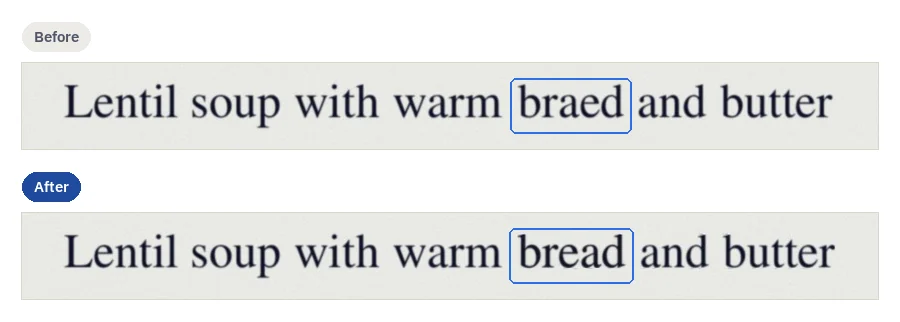
Where do the new letters come from?
From the page, as far as it can. Taking a letter or a word out needs no new ink: the rest of the line is moved across with the page's own pixels, the gap set from the line's own word spacing, and the result says “Made from the page’s own marks”. A different word needs letters the page may not have, so they are drawn, in the typeface identified on that line, with the blur, the grain and the ink colour measured around the selection, and the result says “Matched to the letters around it”. Drawn letters are new ink, and someone comparing the patch closely with the rest of the page could tell.
Look at the corrected place closely before you download it. The check holds everything outside it, not what is left inside it, and a faint trace of a removed letter, or of the edge of a moved one, can remain there.
What does it refuse on a scan, and why?
A correction that cannot be made well is refused, with its reason, and your document stays as it was. On a scan, that happens when:
- a stamp, a rule or a fold crosses the words, so the line cannot be cut cleanly;
- the paper behind the words cannot be reproduced, and filling the gap would mean inventing it;
- the font on the line could not be recognised, or drawn letters would come out sharper than the scan around them;
- the new words are too long for their line, so the paragraph would have to break again;
- taking words out of the middle of a line would leave a hole that the rest of the line could not be moved across to close.
When a page carries marks of having been issued, such as a protocol number, a registry date or stamps, the app says so, and that for a document already issued or served, the clean route is a corrected re-issue rather than a retouch.
Is OCR the same thing?
No. OCR reads the words in a scan so that the PDF can be searched and its text copied, and that is a different job: OCR PDF does it, putting the words under each page's picture and leaving the picture as it was. A correction here changes the picture and adds no text, so a corrected scan is no more searchable than before.
How do other tools edit a scanned PDF?
Most tools turn the scan into text first, or into a Word document, and some do not change a scan's words at all. This is what each maker says on its own pages, read on 29 October 2026:
| Tool | What its maker says | The way |
|---|---|---|
| Adobe Acrobat1 | Acrobat “automatically applies optical character recognition (OCR)”, makes “a fully editable copy” of the PDF, and new text “matches the look of the original fonts”. | OCR, then edit |
| Smallpdf2 | “Smallpdf’s OCR tool allows you to convert scanned documents into editable digital text”, edited in its PDF editor, where “Direct PDF text editing requires a Pro subscription”. | OCR, then edit |
| Xodo3 | “If you’re working with a scanned PDF, use Xodo’s OCR converter to convert the image into an editable PDF” | OCR, then edit |
| HiPDF4 | “To edit text in a scanned PDF, you first need to use an OCR tool to convert the document into an editable format” | OCR, then edit |
| PDF245 | Its tip for changing a PDF's text: “Convert a PDF to Word to edit the text.” Its page does not mention scans. | Convert to Word |
| PDF2Go6 | Its editor “places new text, images and shapes onto the page”; for the existing text, “convert it to Word, edit there, and convert back”; on a scan, “You can write on top of it”. | Convert to Word, or write on top |
| Sejda7 | “Changing existing text within scanned documents is not supported”. | Not supported |
| CECO PDF | Changes the word in the picture itself, moving the page's own marks or drawing letters to match, and checks the page. | Correct in place |
What they do better: OCR and an editor make the whole page editable at once, so many changes, or whole sentences, are quicker there, and the page can be searched afterwards. Word lets you keep editing the document freely. CECO PDF makes one correction at a time and refuses what it cannot match. Typing the page again, covering a word with white and the rest are set side by side in five ways to change text in a scan, compared.
Questions people ask
Can I edit a scanned PDF for free?
You can correct a scan and see the result before you pay: 10 corrections a day. Signed in, your first corrected download each day costs nothing; after it, one takes a credit or a plan. One document costs €0.99; the pricing page lists the rest. One document can be bought without an account.
Do I need to install anything to edit a scanned PDF?
No. CECO PDF runs in the browser of a computer or a phone. Without a credit or a plan it takes files of up to 15 MB and 50 pages; a credit or a plan takes larger ones.
Why can't I select the text in my scanned PDF?
Because it has none. The page is a picture, so there is nothing for a cursor to select. Here you click the word or drag a box around it, and CECO PDF works from the picture. To make the words selectable and searchable instead, use OCR PDF.
Will the new word look like the rest of the page?
That is what it is made for, and drawn letters that would not pass for the page are refused. But the check proves only that the rest of the page did not change, so use “Look closely” before you download.
Can I edit a scanned PDF in Word?
Word converts it: Microsoft says “Word makes a copy of the PDF, converting it to a Word document and attempting to match layout of the original PDF”8, and that conversion works best with files that are mostly text. For a scan that should stay as it is, correcting it in place keeps the rest of the page untouched.
Can I change a scan that has a stamp or a signature on it?
Not where the stamp or the signature crosses the words: that correction is refused, because the mark would be cut. Elsewhere on the page, yes, and nothing outside the correction changes, the stamp and the signature included. For a document already issued, the clean route is a corrected re-issue rather than a retouch.
Related pages
- Edit PDF text, for a PDF whose words are real text
- Change a date in a PDF, for a date or a figure you typed wrong
- Remove text from PDF, to take words out of a scan and close the gap
- OCR PDF, to make a scan searchable
- How it works, for how one correction is made and checked
- Compare PDF, to see what changed between two versions
Sources
Each page below was read on 29 October 2026, on its maker's own website; a number beside a quotation leads to its page. Check a price or a limit there before you rely on it.
- Adobe: Edit your scanned PDF documents with OCR. www.adobe.com/acrobat/how-to/ocr-software-convert-pdf-to-text.html
- Smallpdf: Edit PDF. smallpdf.com/edit-pdf
- Xodo: Edit PDF text. xodo.com/edit-pdf-text
- HiPDF: Edit PDF text. www.hipdf.com/edit-pdf-text
- PDF24: Edit PDF. tools.pdf24.org/en/edit-pdf
- PDF2Go: Edit PDF. www.pdf2go.com/edit-pdf
- Sejda: Online PDF editor. www.sejda.com/pdf-editor
- Microsoft: Opening PDFs in Word. support.microsoft.com/en-us/word/opening-pdfs-in-word
Last updated