Edit a PDF on an iPhone or iPad
To change a word already in a PDF on an iPhone or iPad, open it in CECO PDF in Safari, tap the word, type the right one and apply it. Apple’s Preview and Markup add text boxes on top of the page. CECO PDF changes the word itself, in the document’s font, and refuses what it cannot match.
Open a PDF to correct — it runs in Safari, so there is no app to install.
- What it does: fixes a wrong word, a date you typed wrong or a misspelt name in your own PDF, whether the page has real text or is a scan.
- The check: on the server, not the phone, the page is drawn again, a scan at 300 dots per inch and a page of real text at 150, and compared with yours: nothing outside the new word may change.
- The price: free to try, 10 corrections a day on the free plan, and the corrected pages carry a watermark until you pay, unless you are signed in and have not yet taken your first corrected download of the day. Signed in, your first corrected download each day costs nothing; after it, one takes a credit or a plan. One document costs €0.99, with no account needed.
The PDF you open stays with your documents until you delete it, and for 90 days at most. The privacy notice says what is kept.
What can Preview and Markup do with a PDF on an iPhone?
In Apple’s guide for iOS 27, a PDF is worked on in Preview, an app of its own, and with Markup, the drawing and text tools that open in apps such as Notes and Photos. Apple sums up Preview’s part in two sentences, on its page Annotate a PDF or image in Preview on iPhone: “You can copy, highlight, underline, or strike through text in a PDF file. You can also annotate a PDF or image with stickers, signatures, shapes, or text.”
- Text boxes. Markup’s Add Text puts a new box on the page, as Add text, shapes, stickers, and more with Markup on iPhone describes: “Tap the text box, then use the keyboard to enter text.” Its font, size and colour can be changed.
- Forms and signatures. Preview types into a form’s fields, and beyond its blank fields, Markup can add a text form box and your signature, signed with a finger (Fill out forms, sign documents, and create signatures on iPhone).
- Scans. Preview’s Scan Documents turns pages photographed with the camera into one PDF (Get started with Preview on iPhone).
- From the Files app, a PDF opens in Quick Look, or in the app you choose with Open With (Find and view files and folders in Files on iPhone).
None of these pages describes changing a word that is already in the PDF. What they add sits on top of the page, and the word underneath stays as it was.
| What you want to do | Preview and Markup | CECO PDF in Safari |
|---|---|---|
| Change a word that is already in the PDF | No: a text box goes on top | Yes: the word itself |
| Change a word in a page you scanned | No | Yes: from the scan’s own letters, or drawn to match |
| Highlight, underline or strike through | Yes | Yes, with Edit PDF |
| Add a text box, a sticker or a shape | Yes | A text box or a shape, with Edit PDF; no stickers |
| Fill in a form | Yes | Yes, with Fill PDF |
| Sign | Yes, with a finger | Yes, with your own mark: Sign PDF |
| Check that nothing else changed | Not described | Yes, before you can download |
For a highlight, a note, a sticker, a form or a signature, Preview and Markup are the quicker way, and you never leave the phone’s own apps. In Safari, Edit PDF lays text boxes, shapes, highlights and notes over the page too, and Fill & sign fills a form’s blanks and places your own mark. The correction tool is for the other job: a word that is already there, and wrong.
How do I edit a PDF on an iPhone?
- Save the PDF where you can find it. Apple’s Files guide says where attachments and downloads go: “View files downloaded from email or the internet: Tap Browse, then tap Downloads in the sidebar.”
- Open CECO PDF in Safari, tap “Choose a PDF”, and choose the PDF. If it has a password, type it when you are asked.
- Tap the word you want to change. The hint under the page says it the same way: “Tap the word you want to change, or use Find.” Find is the surer route to a word in small type.
- Type the right word. The card rises from the bottom of the screen and rides above the keyboard, and the page moves so the word stays in sight above it. Tap “Make this change”.
- Read the check. It runs on the server and comes back with the result: how the word reached the page, and outside 0 px. If anything outside the word changed, the correction cannot be downloaded, and Undo is offered.
- Download it. The corrected PDF goes where Safari keeps downloads, the same Downloads place in Files.
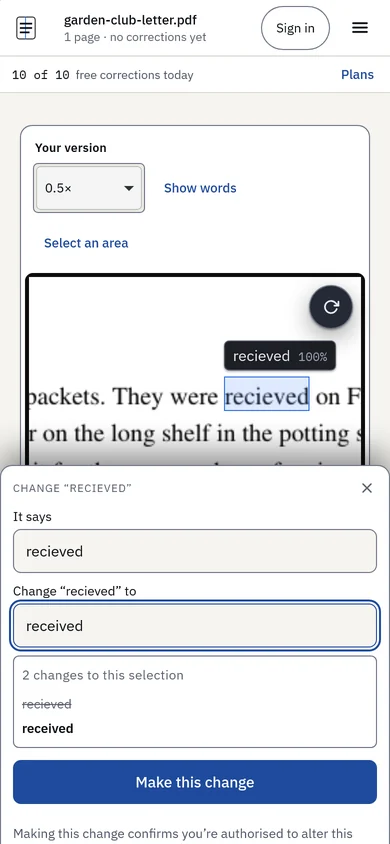
How do I select words with a finger?
A tap selects one word. There is no double-click on a touch screen, so for a line or several words, tap “Select an area” and run a finger over them; without it, a finger dragged over the page scrolls the page, as it would anywhere else. To look at the result up close, open “Look closely”, then drag to move and pinch to zoom.
To delete words rather than change them, empty the field: the button becomes “Delete this”, and the words are deleted rather than covered. On a page of real text, take the space after a word too, by adding it to “It says”, which holds what the selection reads: deleting “twice” alone leaves a double space where “twice ” closes up cleanly. Remove text from PDF says what else to know, such as the record in the file still naming the words.
Does it work on an iPad?
Yes, in Safari, the same way. Apple’s iPad guide, Annotate a PDF or image in Preview on iPad, describes Preview’s tools in the same words as the iPhone’s, and adds: “You can use an Apple Pencil (with a compatible iPad) or draw with your finger.”
In CECO PDF, a finger works on an iPad as it does on a phone: tap the word, or use “Select an area”. The screen is wide enough that the card stays a card rather than a sheet; in a Safari window as narrow as a phone’s, beside another app, it becomes the sheet again. With a keyboard attached, the Mac’s keys work: ⌘↵ applies, ⌘Z undoes and ⌘F finds, and Edit PDF on Mac lists the rest.
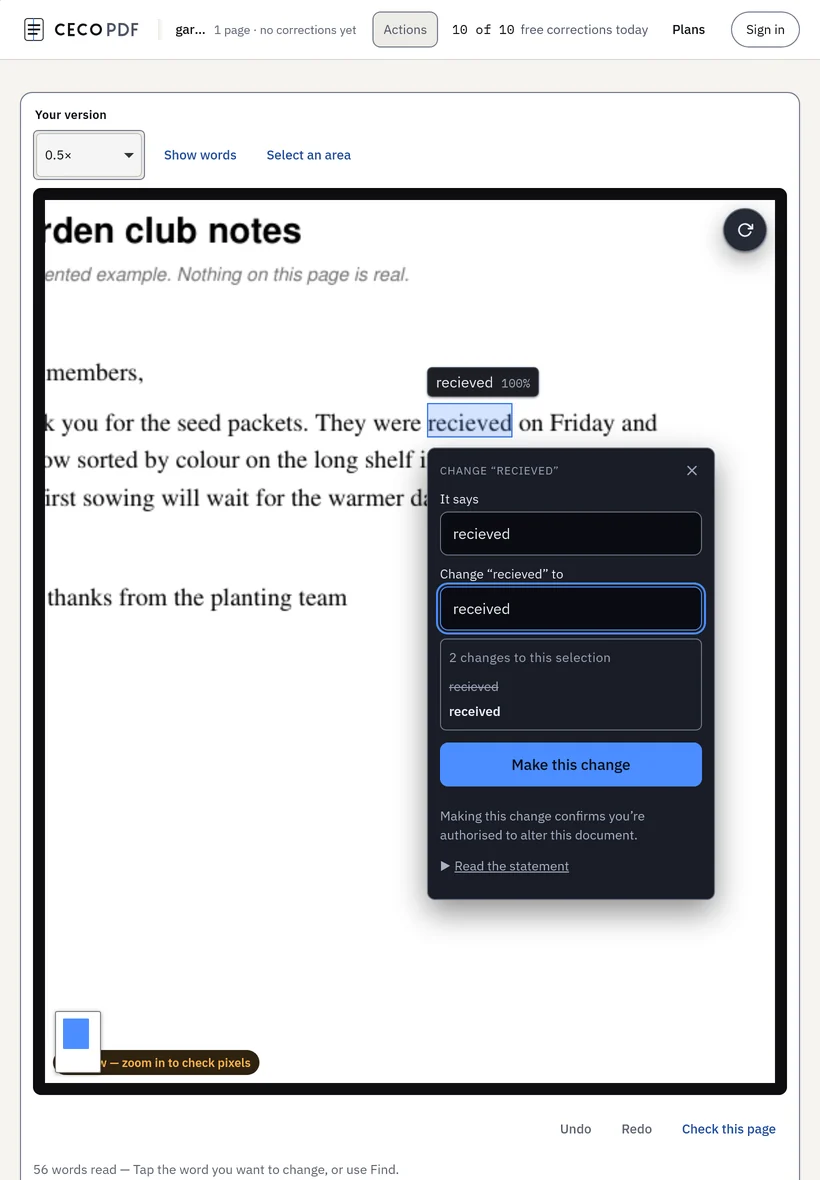
How large a PDF can I open on a phone?
As large as on a computer: the server sets the limits, not the phone. On the free plan, 15 MB and 50 pages a file, and 10 corrections a day; paid plans raise them, as the pricing page says. A page from a phone’s own scanner can be very large, so the picture of it sent to your screen is drawn at a lower resolution to make sure it arrives. The check does not change: it runs on the server, at 300 dots per inch for a scan, on the page itself.
Correct only documents that are yours, or that you are entitled to alter: the terms say who may, and every correction carries your confirmation that you are authorised to make it. Identity documents are refused when they are uploaded.
Questions people ask
Can I edit a PDF on my iPhone?
Yes. Preview and Markup add text boxes, highlights and signatures over the page. To change a word that is already in it, open the PDF in CECO PDF in Safari, tap the word and type the right one.
How do I edit a PDF on my iPhone for free?
Correcting is free to try: 10 corrections a day on the free plan, and you see the result before you pay. Signed in, your first corrected download each day costs nothing; after it, one takes a credit or a plan. One document costs €0.99, once, with no subscription needed. The pricing page has the plans.
Is there an app to install?
No. CECO PDF is a web page that runs in Safari, so there is nothing to install and nothing to keep up to date. It sees only the PDF you choose to open.
Can I edit a PDF I scanned with my iPhone?
Yes. A scan from Preview’s Scan Documents is a picture of the page, and CECO PDF changes the word in the picture: from the scan’s own letters where it can, or drawn to match. Edit a scanned PDF says more.
Where does the corrected PDF go?
Where Safari puts downloads: in the Files app, under Browse, then Downloads, as Apple’s Files guide says. From there you can share it or move it.
Can I fill in a form or sign a PDF on my iPhone?
Preview does both. In Safari, so does CECO PDF: Fill PDF fills a form’s fields and the blanks of a flat or scanned form, and Sign PDF places your own signature or initials.
Will the new word match the font?
In a PDF with real text, it is typed in the document’s own font. In a scan, it is made to match the letters beside it, and refused when the face cannot be identified with confidence. Edit PDF text says how.
Can I edit a PDF on an Android phone?
Yes: CECO PDF is a web page, so it works in an Android phone’s browser as it does in Safari, with the same taps. Edit PDF on Android has the steps, and what Google’s own apps do there.
Related pages
- Edit PDF text, for how a word is matched to the font of the page
- Edit a scanned PDF, for a page you scanned or photographed
- Edit PDF on Mac, for the same job on a Mac, with its keys
- Edit PDF on Android, for the same job on an Android phone or tablet
- Edit PDF, to add a text box, a highlight or a note
- Fill PDF, to fill in a form on your phone
- Sign PDF, to place your own signature
- Compress PDF, when the corrected file is too large to send
Sources
Each page below was read on 29 October 2026, on its maker's own support site, in Apple’s guides for iOS 27 and iPadOS 27. What another program can do is said only as its maker says it.
- Apple: Annotate a PDF or image in Preview on iPhone
- Apple: Add text, shapes, stickers, and more with Markup on iPhone
- Apple: Fill out forms, sign documents, and create signatures on iPhone
- Apple: Get started with Preview on iPhone
- Apple: Find and view files and folders in Files on iPhone
- Apple: Files basics
- Apple: Annotate a PDF or image in Preview on iPad
Last updated